Editing & captions
Add Captions
Word-highlighted captions with preset styles
Livea clip → captioned clip
Works end to end today.
What you bring
A 60-second talking clip
No credit card · $3 one-time starter credit
Recipe
a clip → captioned clip
- InA 60-second talking clip
- DraftRanked moments, each with the reason it was picked
- OutA captioned 9:16 MP4 you can share
No sample video for this tool yet, so we show the recipe instead of borrowing someone else’s footage.
What it makes
One tool, one clear job.
Add word-highlighted captions to a clip in one of the preset styles, then edit any word. It works today in your Loopline workspace.
- Input
- YouTube link or uploaded video, up to 60 minutes and 4 GB
- Output
- 9:16 MP4, 1080×1920
- Captions
- Word-highlighted caption presets
- Audio
- Library music with automatic ducking under speech
- Sharing
- Share link and platform-ready titles and captions
How it works
Three steps. All editable.
Every tool feeds the same editor, so what you make here can be changed scene by scene.
- 01
Bring your video
Paste a YouTube link or upload a long video you have the rights to.
- 02
Review ranked moments
Clip ranks self-contained moments and explains each pick.
- 03
Trim, caption, export
Adjust in and out points, reframe to 9:16, style captions and add music, then export an MP4.
Example prompts
Things to try.
Examples of what to bring to this tool.
- “A 60-second talking clip”
- “A tutorial excerpt”
- “An interview answer”
Tips for good results
Before you hit create.
- Use footage you own or have permission to use.
- Check the first second of each clip: it’s the hook.
Good to know
Questions, answered.
Which videos can I use?
Videos you own or have permission to use: your uploads or a YouTube link to your own content.
Does a high rank mean more views?
No. Ranks describe editorial structure in your footage, not a forecast of views.
Can I post directly to TikTok or YouTube?
Connected publishing is built and awaiting platform approval. Today you download or share the MP4 and post from your own account.
Related tools
Keep going.
Add Music
Cleared library music with automatic ducking under speecha clip + a track → a mixLiveText Overlay
Timed on-screen text for hooks and calloutsa clip → titled clipLiveStoryboard Editor
Edit narration and visuals scene by scene, regenerate one scenea draft → a revisionLive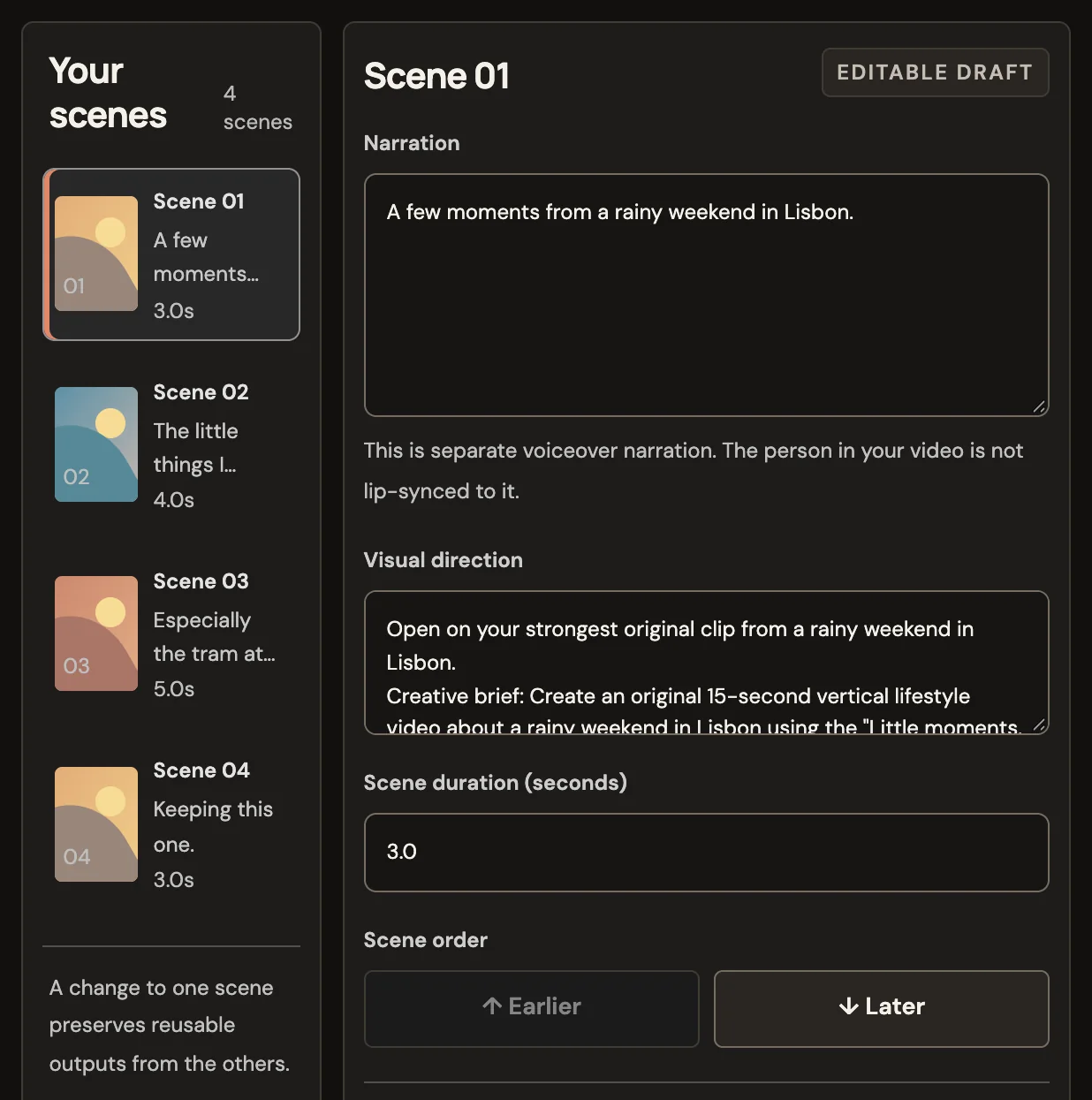 Product screen
Viral Shorts Search
Search public YouTube Shorts in a niche and see dated view countsa niche → dated resultsLive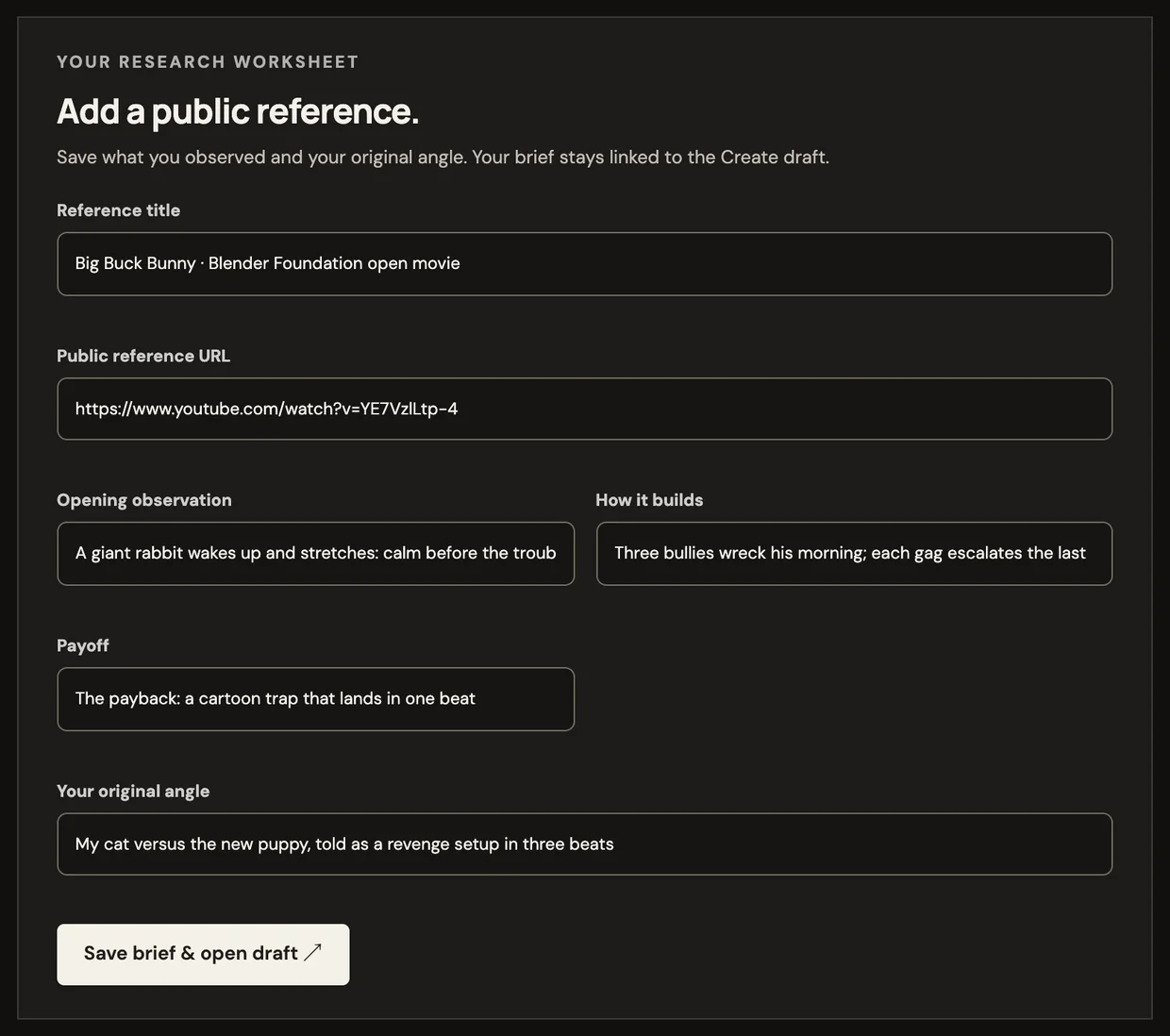 Product screen
Remix a Short
Turn a saved research brief into an original storyboard drafta brief → your versionLiveTemplates to start from
All templatesLittle Moments Diary
A quiet diary of small moments, cut to a calm 15-second rhythma template → a videoLive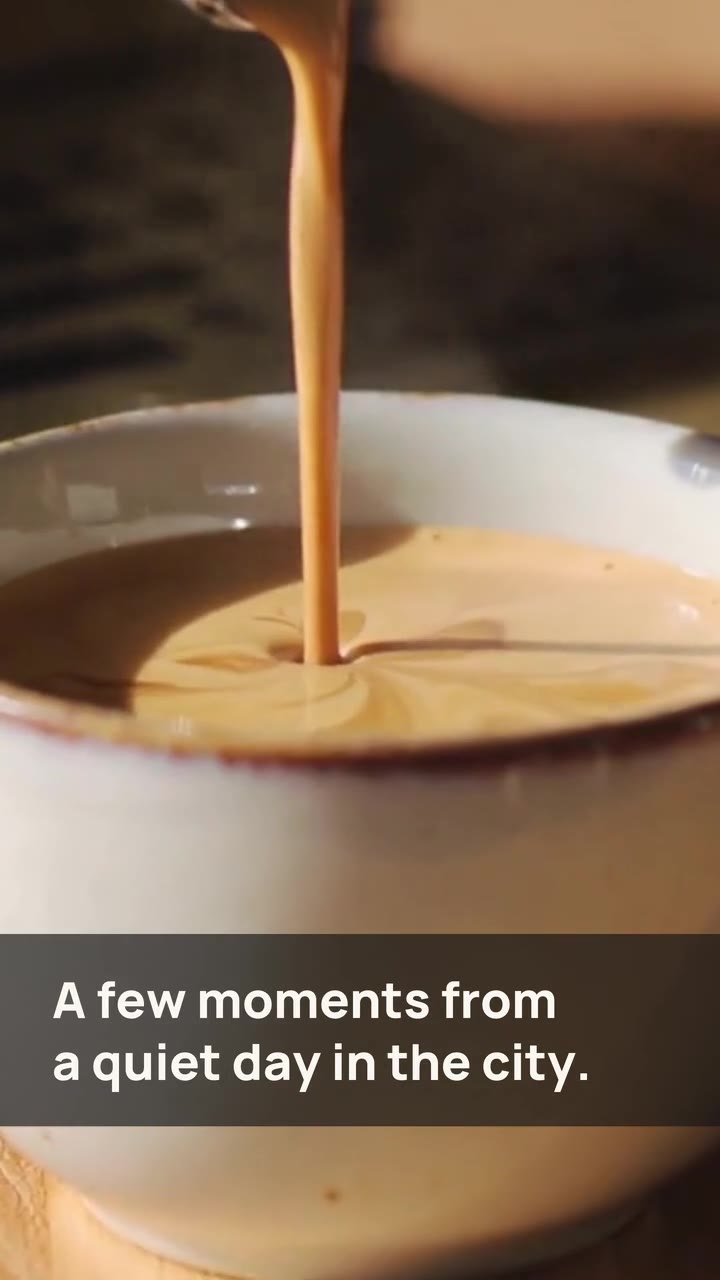 Sample
Two Ways, One Choice
Compare two options in four beats and ask viewers to picka template → a videoLive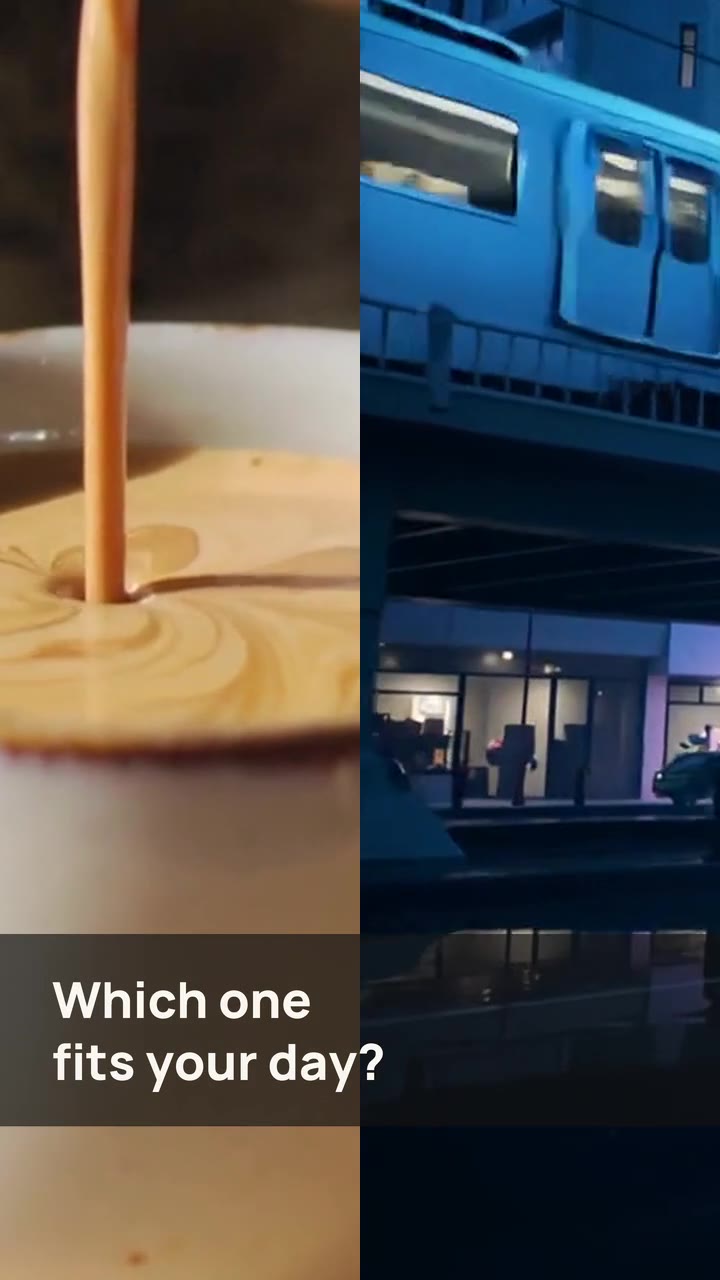 Sample
One Point Take
One opinion, one image per beat, one question at the enda template → a videoLive Sample